Open a new document -
File > New > Resolution: 150 > Ok
Write each letter of your logo in a new layer -
Text tool then type the letter
Click off the text tool
Reselect the text tool and type another letter
If one of your letters is in inverted text-
Highlight a letter with the rectangular marquee tool
Layer > Rastersize (make sure all the editing to the letter is done first as it cannot be changed after)
Image > Adjustments > Invert
To make the letter look negative (give a background) -
Make a New layer
Edit > Fill > Use: Black > Ok
Move the layers so the text is above the layer
Showing posts with label CS4. Show all posts
Friday, 8 October 2010
Friday, 24 September 2010
Adobe CS4 - Layering
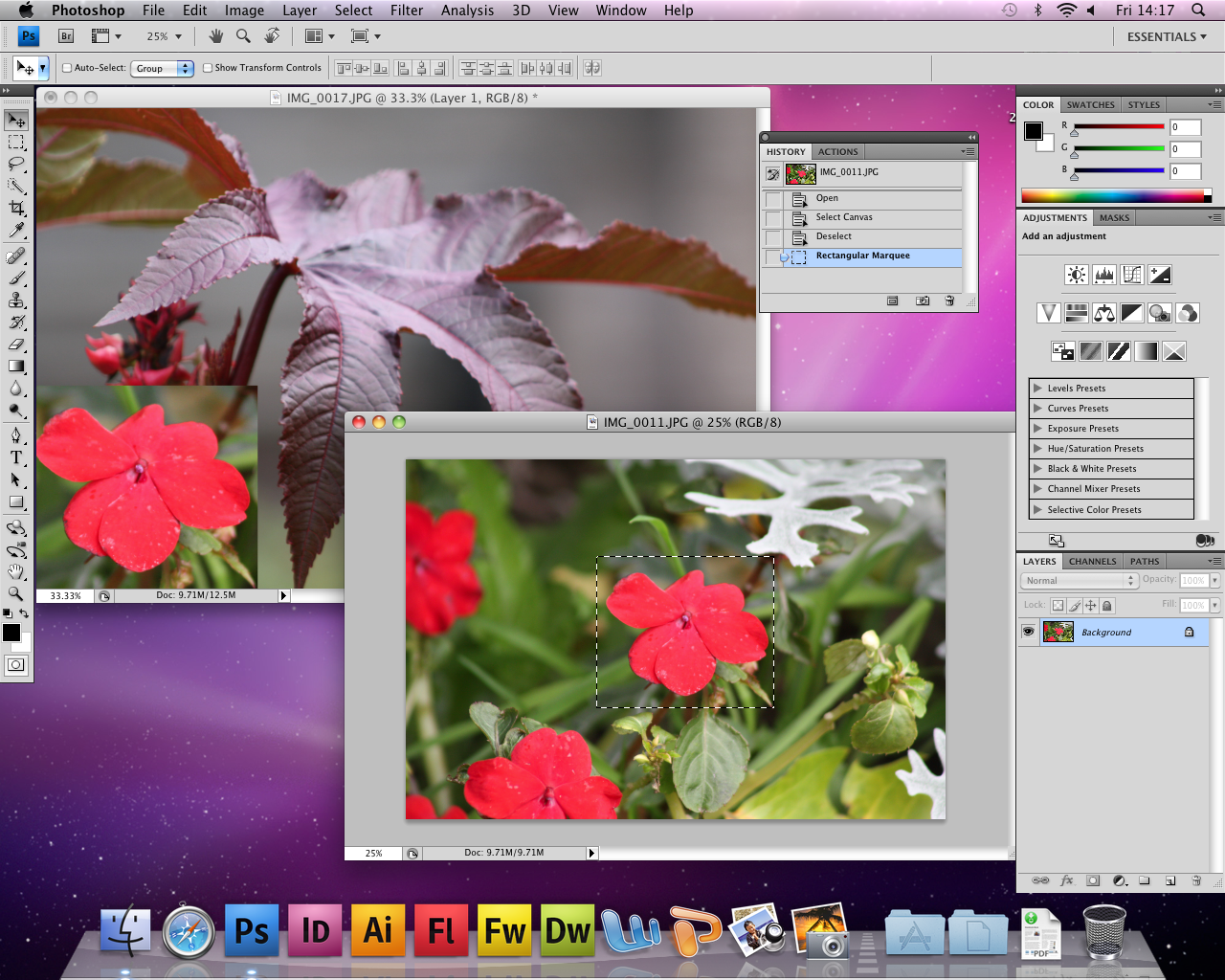
To layer an image over another image-
-- Open both images, and hold and drag on of the tabs away so they are 2 seperate windows
-- Click on one of the images, go to Select > All OR go to the Marquee tool on the side bar and drag over what you want to Select
-- Copy (Apple C), click on the other image and Paste (Apple V) and the selected image will be pasted in the other image
-- The image you now will have is the selected image as layer 1 and the first image is background
-- To resize, rotate, and warp the image, go to Edit > Transform and pick from the menu
Subscribe to:
Posts (Atom)